Muffinresearch Labs by Stuart Colville

Howto: SSH into VirtualBox 3 Linux Guests | 37 Comments

Posted in Code, Linux/Unix on 8th February 2010, 1:11 pm by

In a previous post I wrote about using a TAP interface to be able to SSH into linux guests from the host. Since then changes in the newer versions of VirtualBox have seen the addition of a virtual interface on the Host by default. This post details how to utilise this to allow communication from your host to your guests by simply configuring a second network interface on the guest.

Note: the same result can be used by using one bridged interface to a physical network interface. However, I prefer to do it this way as I’m using a laptop and I don’t know at what point I’ll be using a wired, wireless or 3G connection. The following config will always work irrespective of where you are. That said feel free to detail any experiences of alternative methods in the comments.

The following assumes you are using Linux as a host.

The process is very straightforward if you already have a linux VM or if you are creating one from scratch the process is essentially the same note if you are doing this prior to installing an OS the only thing to note is which interface should be your primary interface. In most case this should always be the NAT adapter. Here’s a screenshot showing the dialogue you’ll see when installing JEOS as an example.
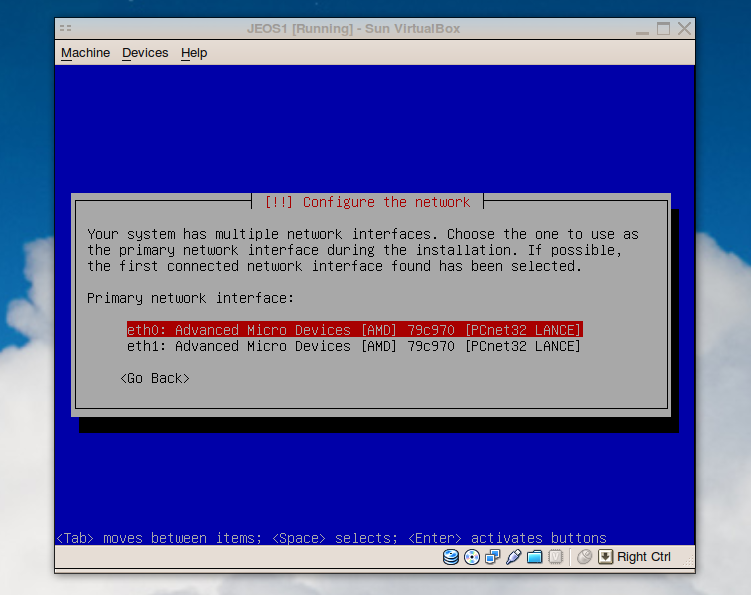
All you need to do is access the settings when the guest is off and add a second network interface to the guest. By default you should have one interface already which is using NAT. This should be left alone as this provides access to the internet. Select the tab “Adapter 2″ and change “attached to” to “Host-only Adapter” this will have the name vboxnet0 by default.
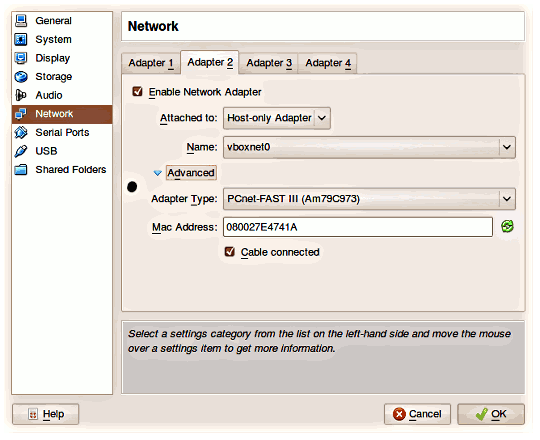
screenshot showing virtualbox guest adapter2 being configured to use host-only networking

Once that’s set, boot the Guest image.

Once booted; from the console of the guest VM you’ll need to set-up the configuration for the second network interface in this case “eth1″ as we already have “eth0″ defined. To do this all you need to do is edit /etc/network/interfaces to add the eth1 configuration.

This is a simple as adding the following lines based on our vboxnet0 is configured to 192.168.56.1 (based on running ifconfig on the host.

auto eth1
iface eth1 inet static
    address 192.168.56.10
    netmask 255.255.255.0

Save this and then run the following to fire up eth1:

sudo ifup eth1

Note: If you haven’t already installed openssh-server now would be a good time to do so! sudo apt-get install openssh-server

Now you can drop into the terminal and ssh into your VM e.g:

ssh jeos@192.168.56.10

That’s it.

Post Tools

  • Pingback: VirtualBox: Access Guests via a Virtual Interface by Stuart Colville

  • Jason

    Where did you get the “address 192.168.56.10″ line from?

  • http://muffinresearch.co.uk Stuart Colville

    @Jason that’s just made up based on the settings for the vboxnet0

    In other words to know what ips you can use for each vm look at what vboxnet0 is set to by running ifconfig on your host.

    For me it’s defaulting to 192.168.56.1 so that tells me I can choose any IP address from 192.168.56.2 onwards.

  • Jason

    Thanks for explaining :) Networking magic numbers are not my strength…

    I got this working under Debian Squeeze (host and guest), but for some reason “ifup eth1″ was not enough, it seemed to require a reboot of the guest.

    This is excellent, now I can test webserver magic without cluttering up my actual PC. Thanks for the writeup :)

  • Jason

    Okay, the problem was actually Firestarter on the HOST side (the iptables based firewall manager), that I happened to switch off at about the same time as rebooting the guest.

    See:
    http://osdir.com/ml/security.firewalls.firestarter.user/2006-04/msg00023.html

    …but Firestarter is not really designed to deal with multiple interfaces.

  • Gabriel K

    You rock, thanks for this tutorial. I was working on getting Debian set up through VirtualBox as a sandbox for work, then I realized I had no idea how to access the guest os from my host. So, thanks!

  • whatdoesitwant

    Perfect explanation. Btw this also works on a windows 7 host. Obviously to check the vboxnet0 prefered ip on windows instead of using ifconfig -a you use ipconfig /all but I think virtualbox 3up defaults to 192.168.56.1 anyway, so that leaves you with the choice of any number in the range of 192.168.56.2-192.168.56.255
    Alternatively instead of using the command prompt, in vista and 7 you can use powershell. Powershell accepts most standard linux commands, making cli on windows much less frustrating.

  • whatdoesitwant

    PS, add the guest machine’s ip and name to your host machine’s hosts file to ssh from the host to the guest by name instead of ip.

    So if your username is bobby and your guest machine’s name is tintin and its ip is 192.168.56.10, adding the line
    192.168.56.10 tintin
    to hosts (on the host machine) will allow you to access the guest from the host like so:
    ssh bobby@tintin

  • Adriano

    Thanx! works fine for me and it was very simple.

    I wasted a lot of time doing the wrong way before I reach this howto!

    cheers

  • marc

    works great – thanks!

  • Kyon

    Seems that it doesn’t work on MacOSX… I can’t ping neither virtualbox on 56.1 nor my Debian VM on 56.10 from the mac, and I can’t either ping virtualbox from the Debian VM itself…

  • http://muffinresearch.co.uk Stuart Colville

    @Kyon: It’s really hard to say what’s up without further information, and I don’t use a mac so I’m unable to check these instructions for you.

    Can you post the output of ifconfig?

  • http://codeindsgn.com William Notowidagdo

    I can SSH my CentOS guest host just by adding the 2nd adapter like you said. No need extra configuration.

    Thank you.

  • Peter Hinson

    Thanks this worked great!!! In VirtualBox 3.2 once you select Adapter2 for the internal network, everything is configured automatically. You don’t need to add the 192.168.56.10 lines to the network interface config file.

    Cheers

  • Martin

    Thanks.. this worked for me… i have Windows host and it worked with few effort.

  • Pingback: Mounting an ext4 Partition over NFS on Mac OS X Snow Leopard « Biboroku

  • Pingback: Mounting an ext4 Partition over NFS on Mac OS X Snow Leopard | Biboroku

  • http://samanbarghi.com Saman Barghi

    Hi,
    Thanks, it worked great. I needed to SSH to FreeBsd guest machine, and I reposted this entry for FreeBsd machines here:

    http://www.samanbarghi.com/2011/02/04/ssh-to-virtualbox-3-freebsd-guests/

    I included the link to your post at the beginning.

    Thanks,
    Saman

  • janusz

    Thanks, works great.

  • John

    I have the same problem as Kyon.
    I’m running Mac OS X 10.5.6 as host with VirtualBox 4.0.4 and I’m using Ubuntu 10.10 Server 64bit as the guest OS.
    The output for ifconfig looks as follows:

    $ ifconfig -a eth1
    eth1      Link encap:Ethernet  HWaddr 08:00:27:1f:60:e1
              BROADCAST MULTICAST  MTU:1500  Metric:1
              RX packets:0 errors:0 dropped:0 overruns:0 frame:0
              TX packets:0 errors:0 dropped:0 overruns:0 carrier:0
              collisions:0 txqueuelen:1000
              RX bytes:0 (0.0 B)  TX bytes:0 (0.0 B)
              Interrupt:16 Base address:0xd240
  • http://www.amittai.com Amittai Aviram

    I have the same problem as John and Kyon. I have Mac OS X 10.6 (Snow Leopard) and VirtualBox 4.0.4, and I have installed Ubuntu Server 10.10 (64-bit) on a virtual AMD machine in VirtualBox. I followed all of the above directions exactly. When I try to connect from my host terminal, SSH just hangs until it times out. The IP address is the same as what most people here are using. That is,

    $ ifconfig vboxnet0
    ether 0a:00:27:00:00:00
    inet 192.168.56.1 netmask 0xffffff00 broadcast 192.168.56.255

    So I entered the following in my guest’s /etc/networks/interfaces:
    # Second interface for VirtualBox host-to-guest communication.
    auto eth1
    iface eth1 inet static
    address 192.168.56.10
    netmask 255.255.255.0

    I have run
    $ sudo ifup eth1

    and, in troubleshooting, I have run ifdown and then ifup again. I have rebooted the guest. I don’t know what else to do. Has anybody succeeded with Mac OS X 10.5 or 10.6? Thanks!

  • http://www.amittai.com Amittai Aviram

    I have solved my own problem! I just had to go back to my virtual machine’s Settings -> System and check “Enable I/O APIC.” Then I booted the VM up as usual, switched windows to my host’s terminal—and I could SSH to my virtual machine!

  • http://muffinresearch.co.uk Stuart Colville

    @Amittai Aviram: Thanks for taking the time to provide an update.

  • LCamel

    Thank you for the tutorial! 謝謝!

  • Fred Obermann

    Lovely article, however….

    I ran through these steps on 64bit Mandriva Spring 2010. When I try to ssh from the host, the result is that I log in to the host, not the guest.

  • http://notka.eu Darek Adamkiewicz

    Thank you very much for this recipe. I’ve two Ubuntu boxes on virtualbox/vista and I’ve been looking for way to connect via ssh to second one on ip other than 192.168.56.1

    Regards
    Darek

  • http://chrisyallop.com Chris Yallop

    I’m running a mac as the host and had the same difficulties as Kyon and John. Eventually, for me the solution was in the VirtualBox preferences. As already mentioned make sure there is a vboxnet0 host added. When done, select the vboxnet0 item and edit it. On the pop up screen, switch to the DHCP Server tab, enable it and fill it in. I used the following settings:

    Server Address: 192.168.56.100
    Server mask: 255.255.255.0
    Lower Address Bound: 192.168.56.101
    Upper Address Bound: 192.168.56.254

    Press OK and start up your guest VM. This assumes your guest VM is using the following settings in the /etc/network/interfaces file for ethernet 1:

    auto eth1
    iface eth1 inet dhcp
  • vw

    After setting up my host and local guest VM exactly as described in this howto. I am not able to ping my guest VM from my host. The guest VM is able to connect to the internet from eth0. Ultimately I would like to reach port 22 and 80 for ssh and httpd. Below is the output of running a ping from my host:

    PING 192.168.56.10 (192.168.56.10) 56(84) bytes of data.
    From 192.168.56.1 icmp_seq=1 Destination Host Unreachable
    From 192.168.56.1 icmp_seq=2 Destination Host Unreachable
    From 192.168.56.1 icmp_seq=3 Destination Host Unreachable

    I have VirtualBox version 4.0.4 OSE below are my machine configurations:

    Host: Ubuntu 11.04
    In ifconfig:

    vboxnet0  Link encap:Ethernet  HWaddr 0a:00:27:00:00:00
              inet addr:192.168.56.1  Bcast:192.168.56.255  Mask:255.255.255.0
              inet6 addr: fe80::800:27ff:fe00:0/64 Scope:Link
              UP BROADCAST RUNNING MULTICAST  MTU:1500  Metric:1
              RX packets:0 errors:0 dropped:0 overruns:0 frame:0
              TX packets:0 errors:0 dropped:0 overruns:0 carrier:0
              collisions:0 txqueuelen:1000
              RX bytes:0 (0.0 B)  TX bytes:0 (0.0 B)

    Guest: Debian 6.0.3

    In ifconfig:

    eth1      Link encap:Ethernet  HWaddr 08:00:27:a2:1b:a1
              inet addr:192.168.56.10  Bcast:192.168.56.255  Mask:255.255.255.0
              inet6 addr: fe80::a00:27ff:fea2:1ba1/64 Scope:Link
              UP BROADCAST RUNNING MULTICAST  MTU:1500  Metric:1
              RX packets:0 errors:0 dropped:0 overruns:0 frame:0
              TX packets:101 errors:0 dropped:0 overruns:0 carrier:0
              collisions:0 txqueuelen:1000
              RX bytes:0 (0.0 B)  TX bytes:15619 (15.2 KiB)
              Interrupt:16 Base address:0xd240

    In /etc/network/interfaces:

    auto eth1
    iface eth1 inet static
        address 192.168.56.10
        netmask 255.255.255.0
  • vw

    Solved my issue. It was the adaptor type for my host-only adaptor. I had set it to match what was in the howto (PCnet-FAST III). I switch the adaptor type to match my NAT adaptor (Intel PRO/1000 MT Desktop). I am now able to access my guest VM from 192.168.56.10

  • Pingback: Enabling SSH Connections to a VirtualBox Guest OS

  • Superole

    Excellent! It works! almost upon first try…
    I actually reversed the steps, and that made me have to restart the VM, but then it just worked automagically.

    PS: I left the adapter-type in the default setting, because the textual steps didn’t mention it. My default was Intel PRO/1000 MT Desktop (same as VW posted to have used).

    PPS: My host is Win7 and my guest is Ubuntu

  • http://www.nielsbom.com Niels Bom

    I encountered a problem with the “Name” dropdown in your screenshot. My dropdown was empty and I got the following notice:

    “No host-only network adapter is selected”

    Solution: first add a network via File > Preferences > Network > Add (plus sign)

  • Sriram

    Thanks alot, this works very well with an Ubuntu 11.10 host with 2(+) Ubuntu 11.10 guests

  • kevin

    Thanks for the great tip.

    I didn’t have to edit my interfaces file at all though. After I added the extra network interface to the guest I booted it up and typed ifconfig and saw that eth1 had an IP of 192.168.56.101 so in my host I tried to ssh into that and it worked!

    When I was adding the second network interface in virtual box though at first I had no options for name. To fix this I just opened the virtual box settings from File > Preferences. And in the network tab I just clicked add host-only network.

  • http://muffinresearch.co.uk Stuart Colville

    @kevin: that sounds reasonable – I set it as static just to prevent the case of a DHCP lease expiring and the ip address changing.

  • Pankov

    Great tutorial only there is a need to “/etc/init.d/networking restart” if you don’t want to restart the guest.

  • http://twitter.com/oripel Ori Peleg

    Thanks, worked like a charm with a OS/X Lion host and Ubuntu 12.04 guest.

GNU screen: open tab in current working directory|(1)

A nice trick for having screen open a new tab in the same directory as the one you’re currently in. To use it add it to your .screenrc

# Open new window in current dir.
bind c stuff "screen -X chdir \$PWD;screen^M"
bind ^c stuff "screen -X chdir \$PWD;screen^M"

Hat tip: mteckert on SuperUser.com

Ubuntu: add-apt-repository: command not found|(3)

When you’re using a minimal Ubuntu install if you find the ‘add-apt-repository’ command is missing (it’s useful for adding PPAs and other repositories), then simply run:

sudo apt-get install python-software-properties

Photos on Flickr

© Copyright 2004-12 Stuart Colville, all rights reserved. May contain traces of Muffin. Powered by WordPress. Hosting by Slicehost.com This page was baked in 0.549s.