
My new job at Multimap involves plenty of command line work and as I am working on a mac 100%, it's been well worth trying to find a set-up that makes it easy to switch between shells on multiple servers and directories.
Initially I thought it would make sense to look at a terminal replacement that supported tabs so I could tab between my different connections and the first app I tried out was terminator.
Terminator
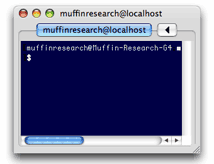 Terminator is a java based terminal emulator that has the useful addition of tab support. Being a java app it takes a while to load up , and it's lacking in a few of the features (like bookmarks) compared to it's closest equivalent iTerm but it doesn't seem to suffer from the same slowdown. It has UTF-8 support, allows drag and drop and best of all is released under the GPL. Being written in Java it will run on pretty much any posix environment, even windows (providing you've installed Cygwin).
The biggest downside with Terminator is that in-use it screwed up the colors of my BASH terminal and came up with some errors when trying to edit an html file with vim.
iTerm
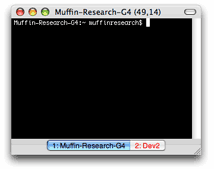 iTerm is another tabbed terminal replacement with plenty of configuration options, the most useful being that you can specify bookmarks which can run a command when opened. These bookmarks can be opened into a new tab so it makes it very easy to open a new tab for each connection. The only problem I had with iTerm was that it slowed down in the course of using it and becomes so slow that it was almost unusable. This is a shame as without the slowdown this would be worthy of a place on my most frequently used apps list. To counter the slowdown I tried reducing the scrollback and turned off every feature that I didn't need but this didn't help. On iTerms's website there is a FAQ question that mentions the slowness but the response is to try the latest version. I was of course running the latest version but this is a indication that the developers are working hard to make iTerm faster with every release so it's definitely worth keeping an eye on.
mrxvt
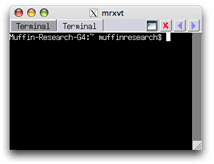 One criteria I had if i was going to replace apple's terminal was that the replacement should be faster than terminal if anything. With that in mind I decided to look at running something inside of X11. This is certainly the more geeky approach as it involves installing the Apple developer tools to be able to compile apps on your particular machine. In addition to this you need to have installed X11 itself. If it's already installed it should be found in the utilities directory of applications. You can download earlier versions from apple's website or if you are running Tiger X11 can be found on the installation DVD. Once X is up and running, the next step is to download the source for mrxvt from sourceforge. Once you have unpacked the source you need to do is run in the newly unpacked mrxvt source directory:
./configure --enable-everything --disable-debug

make

make install
Once this is complete the mrxvt binary has been installed to /usr/local/bin. To run mrxvt you need to invoke X11 and run it under X. X11 also allows you to put a link to the mrxvt under the X11 application menu. This makes it easier to run mrxvt when X11 is open. If you are really into using mrxvt then you can create an app from applescript that will invoke X11 and launch mrxvt all in one hit.
mrxvt is incredibly fast and this could be a useful set-up for many, though I found I had a few foibles with it. If like me you are working with several apps at once you can't command+tab between those apps and mrxvt. What you have to do is switch to X11 and then focus mrxvt by pressing command+n where n is the number of the window in x. This is a massive pain in the neck and if anyone knows of any useful wrappers for X11 so that you can get round this please let me know and I'll update this article.
Another minor annoyance is that to change the setting for mrxvt you have to edit a configuration file (here's my .mrxvtrc file as an example). However, that's to be expected given the origins of this app. It's also worth noting that the latest version is supposed to have included Utf-8 support whereas the previous version 0.4.2 didn't. Also version 0.5.0 boasts several other enhancements over the previous version so it is worth checking out.
GLTerm
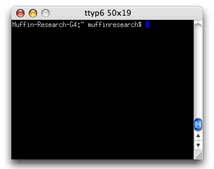 GLTerm is a single window, lightweight terminal written in C++. It's superfast because it use OpenGL to render X11 .bdf fonts. By not using mac fonts or providing glitz like anti-aliasing or transparency massively helps performance. It's certainly worth considering as long as you don't need tabs and you don't mind paying $10. As this is a shareware release, naturally when un-registered, a nag screen appears from time to time. One downside with GLterm is that it doesn't support unicode so if that's a requirement for you then this may be one to avoid.
Screen
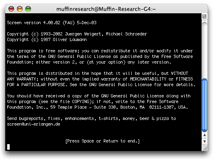 GNU Screen is a command line program that takes control of your terminal so that you can simultaneously run several different sessions inside of your shell. To start screen type simply 'screen'. Once you have launched screen and dismissed the startup display you can open new terminal 'screens' with a special keystroke. This keystroke is 'ctrl+a'. To create a new window press 'ctrl+a c'. To switch between the opened windows there you either can use the id of the window 'ctrl+a 0', 'ctrl+a 1' etc. You can also view a list of all open screens by pressing ctrl+a ". This is a very useful app but takes a bit of getting used to. If you don't like tabs but would like to run several sessions at once then this could be the best solution. There's far too much to screen to be able to cover every facet of it here, but if you would like a solid overview check out Johnathan McPherson's article; 'GNU Screen'.
Conclusion
Whilst all of these alternatives have something extra to offer since trying them all out I have decided to stick with Terminal. I realised that tabs were not the answer and I could be just as productive using screen or command+` to switch between terminal windows. Speed isn't so much of an issue but GLterm is definitely faster. If it was free then I may have switched over to using that for an extended test, but it doesn't offer enough of a advantage for me over terminal for what I am doing.To make it easier to distinguish between which server I am on I have written a special .bashrc file that gives me different colour prompts for different servers. I will write that up in a future article. So indeed, Terminal it is for now!